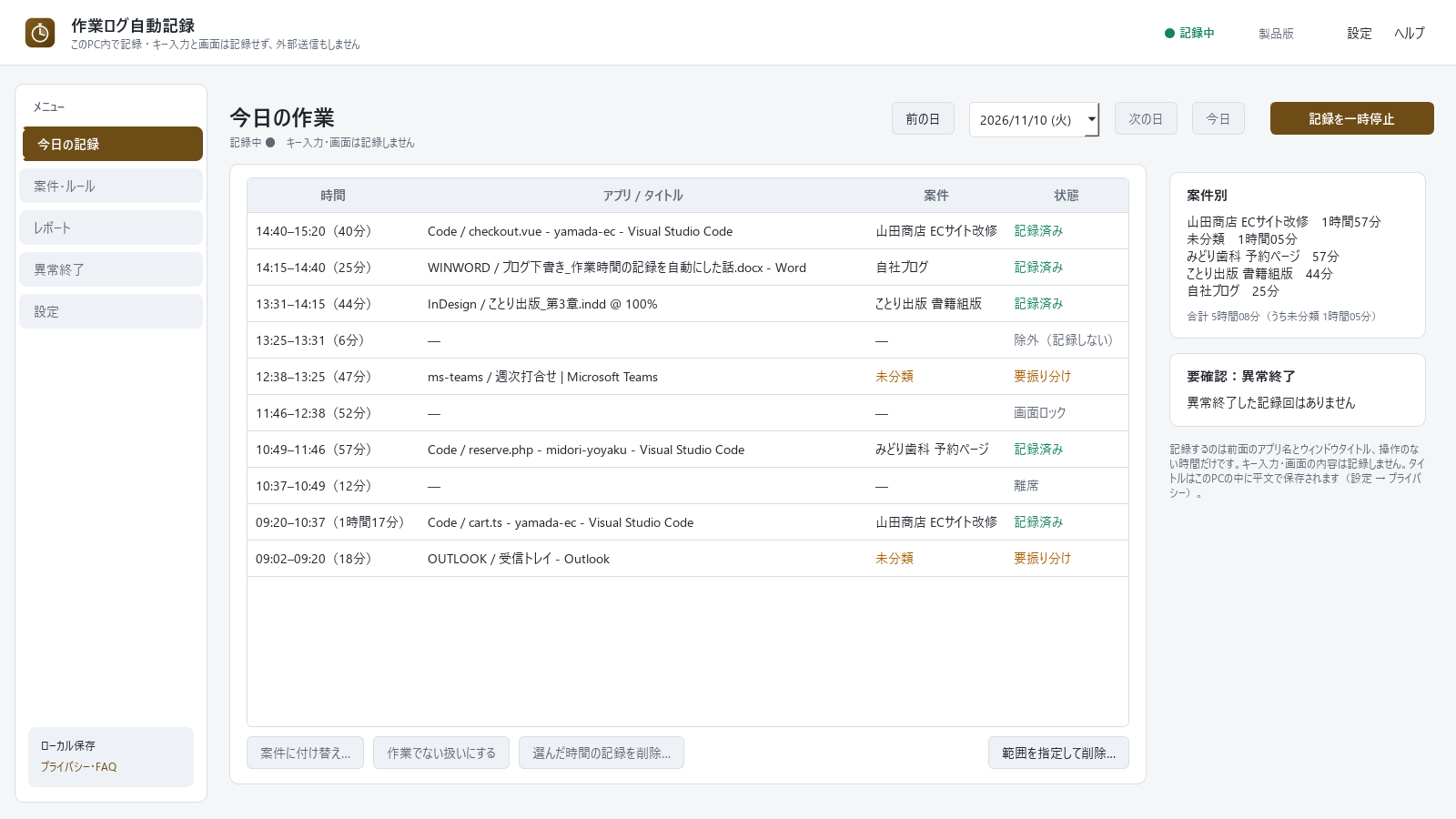
— 使ったアプリとタイトルから、今日の作業を自動で記録。案件別の合計もひと目で
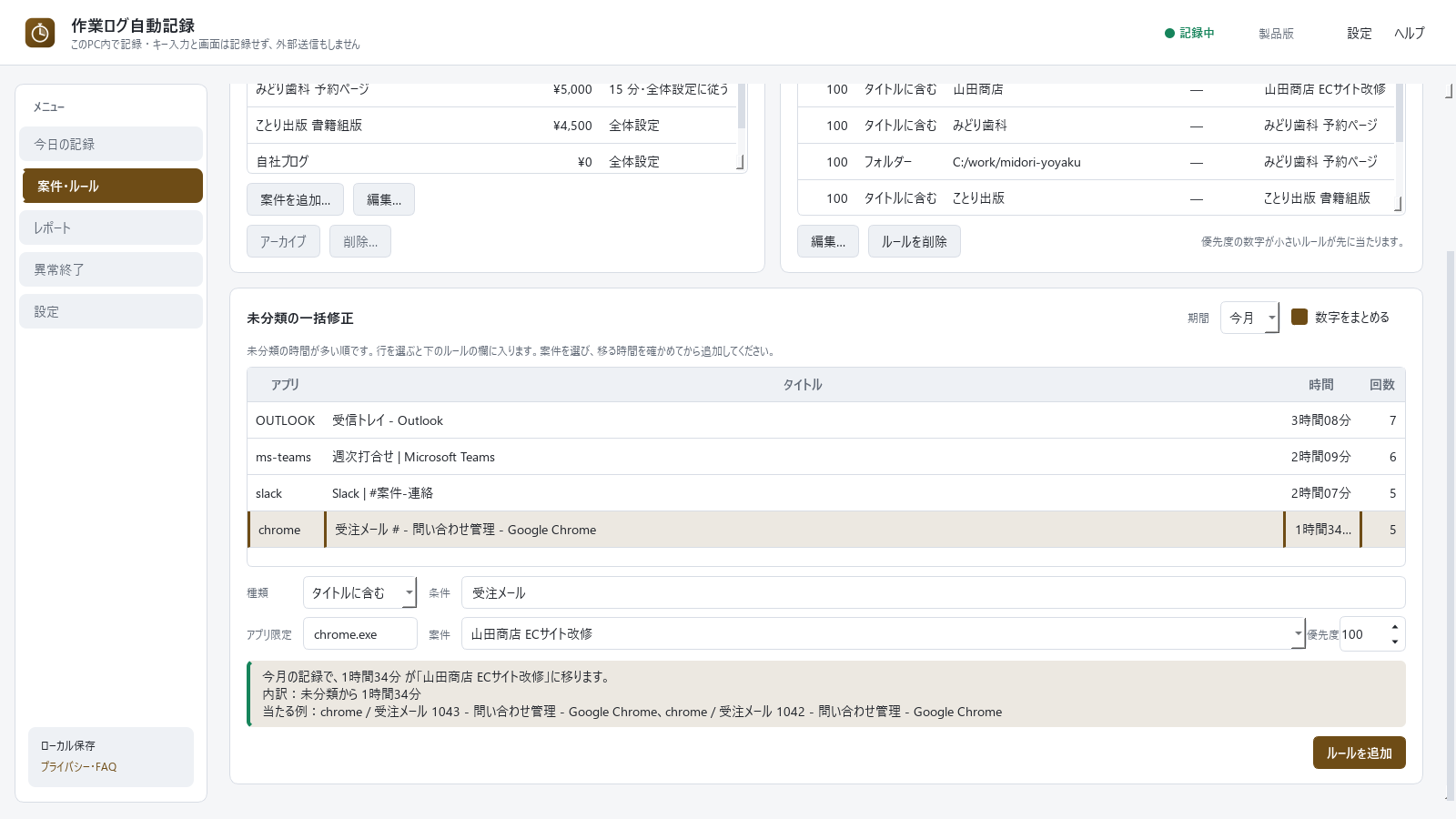
— 未分類の時間を多い順に。ルールを足す前に「何時間がどの案件に移るか」を確認
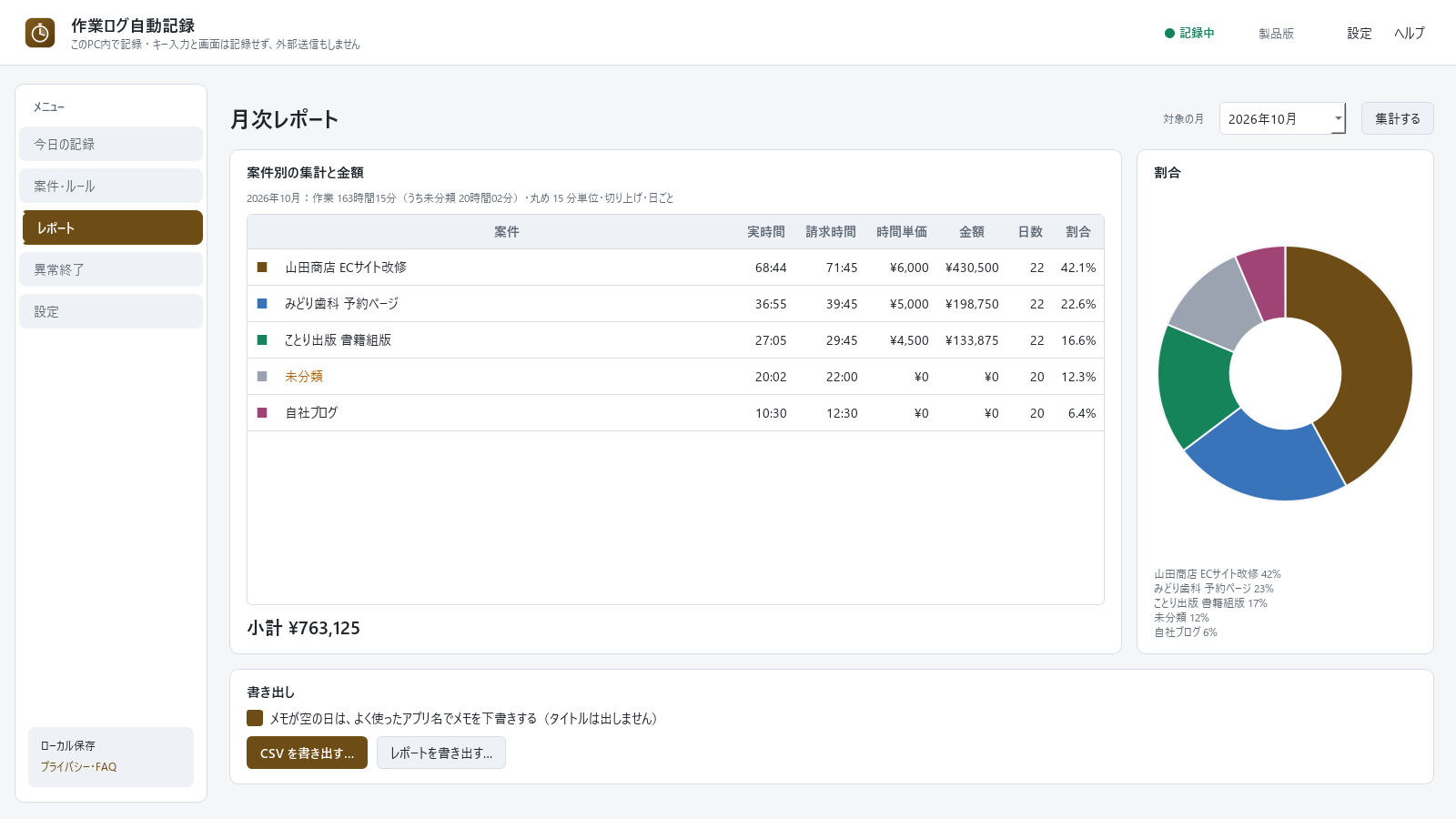
— 月次の案件別の時間・請求時間・金額。CSV とレポートを書き出し
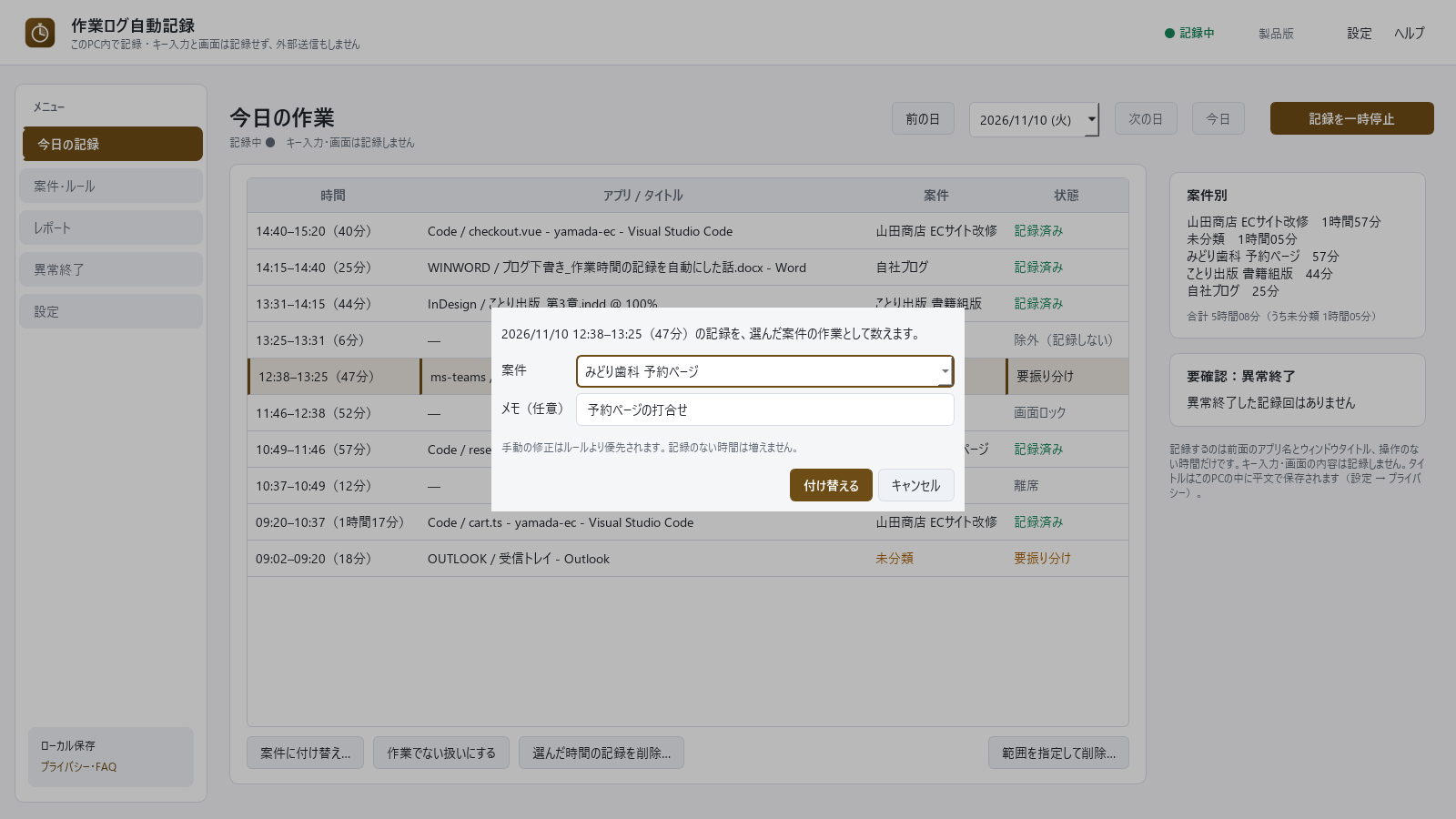
— 打合せなど、選んだ時間を手で案件に付け替え
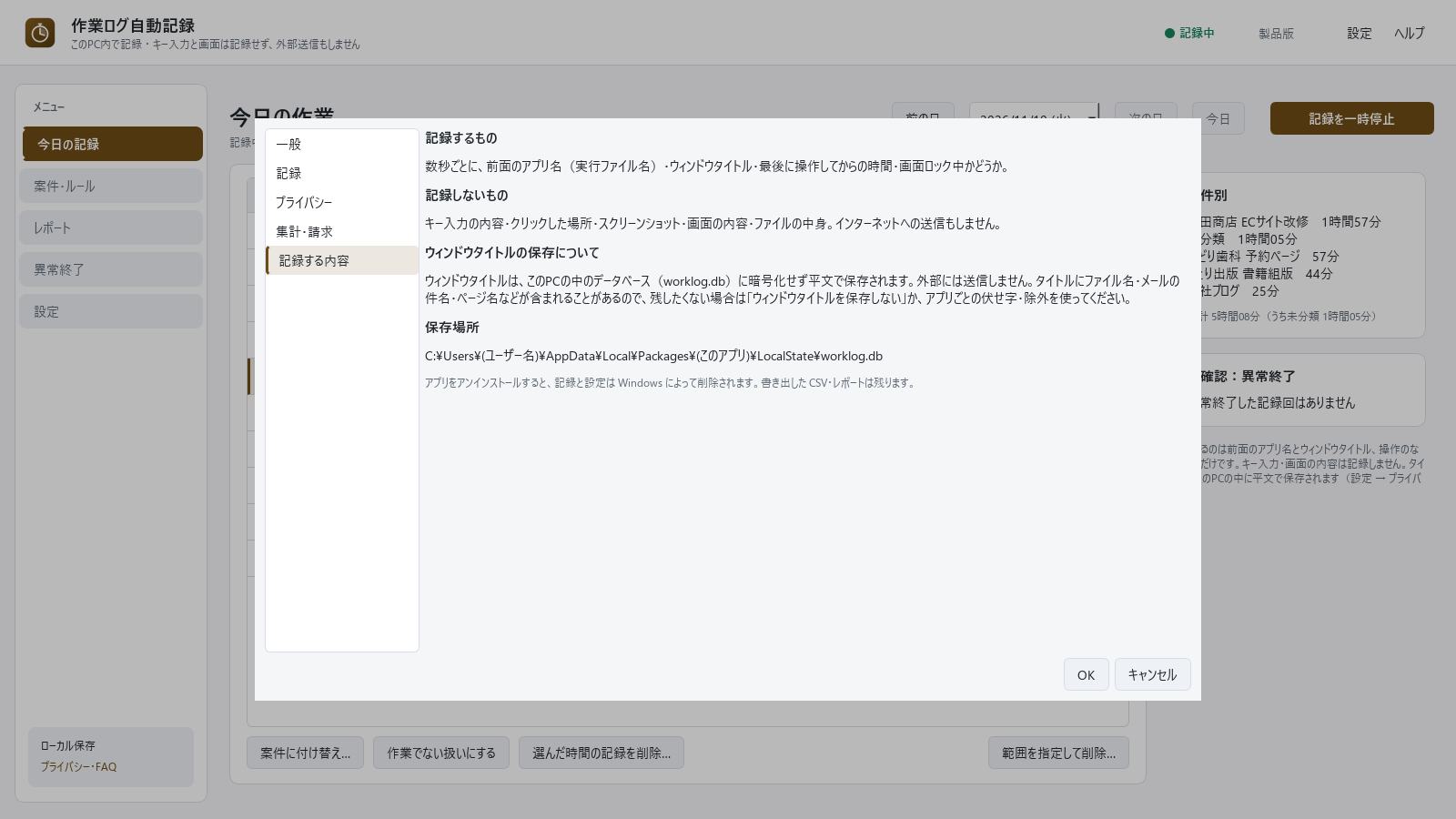
— 記録するのはアプリ名・タイトル・操作のない時間だけ。キー入力・画面は記録せず、外部に送信しません
見出しが Partner Center の欄名。本文をそのまま貼る。番号付きの項目は 1 つずつ別の欄に入れる。市場は「日本」、掲載言語は日本語のみを推奨(英語は参考)。提出の手順・価格・年齢区分・審査への注記は SUBMIT.md。
| 項目 | 値 |
|---|---|
| 予約した名前(日本語) | 作業ログ自動記録 |
| Store ID | 9N4GBVJZ00QK |
| Package/Identity/Name | imoninja.26312176752CA |
| PFN | imoninja.26312176752CA_gytd433ssh6vj |
| Publisher | CN=ECF78C6D-7A8E-415A-BEC7-4C853385A7DE |
| プライバシーポリシーの URL | https://auto-work-log.pages.dev/ |
| サポートの連絡先 | imoninja@gmail.com |
| アップロードする MSIX | WorkLogger_1.0.0.0_x64.msix(34,308,866 バイト。ここには置いていない。作者の PC の apps/work-logger/dist/ にある) |
作業ログ自動記録
フリーランス・副業の方の「何に何時間使ったか」の記録と月末の請求の集計を、記録しなくていいようにするアプリです。
パソコンで使ったアプリとウィンドウタイトルから作業時間を自動で記録し、案件ごとに振り分けて、時間単価を掛けた金額・請求用 CSV・月次レポートまで作ります。
記録はこのパソコンの中だけ(ウィンドウタイトルも外部に送信しません)。タスクトレイで軽く常駐し、買い切りで使えます。

■ こんな方に
・複数の案件を掛け持ちしていて、月末に「どの案件に何時間使ったか」を思い出せない
・タイマーの押し忘れで、作業時間の記録が抜ける
・時間単価で請求していて、根拠の資料を毎月まとめている
・サブスクリプション型のタイムトラッカーに払い続けたくない、作業の記録をクラウドに置きたくない

■ できること
・自動記録:数秒ごとに、前面のアプリ名とウィンドウタイトルを記録します。操作のない時間が続くと(既定 5 分)離席として扱い、最後に操作した時点まで遡って作業時間を区切ります。画面ロック中・スリープ中の時間は作業に入りません
・振り分けルール:「タイトルに "山田商店" を含む」「アプリが Excel」「VS Code のフォルダーが C:\work\yamada」「正規表現」などで案件に振り分けます。ルールは集計のたびに当て直すので、後から追加・編集したルールは過去の記録にも効きます
・後からまとめて直す:未分類の時間が多いアプリ・タイトルを多い順に表示し、ルールを追加する前に「何時間がどの案件に移るか」を確かめられます。「受注123」「受注124」のような番号違いは 1 行にまとめられます
・手動の修正:選んだ時間を案件に付け替える・作業でない扱いにする・記録を削除する(範囲指定も可)
・集計:今日のタイムラインと案件別の合計、月次の案件別の実時間・請求時間・金額・割合(円グラフ)
・請求の計算:丸め(1〜60 分単位、切り上げ/切り捨て/四捨五入、日ごと・月合計)、円未満の処理、消費税(外税)。案件ごとに丸めを変えられます
・書き出し:請求用 CSV(日付・案件・時間・請求時間・金額・メモ。Excel でそのまま開ける UTF-8)と月次レポート(Markdown)。CSV とレポートにウィンドウタイトルは出しません
・案件のアーカイブ(終わった案件を選択肢から隠す。過去の集計はそのまま)と削除
・Windows の起動時に自動で記録を開始(設定でオン・オフ)。アプリが落ちても自動で起動し直し、正常に終わらなかった記録の回を「異常終了」として確認できます

■ プライバシー
・記録するのは「前面のアプリ名(実行ファイル名)」「ウィンドウタイトル」「最後に操作してからの時間」「画面ロック中かどうか」だけです
・キー入力の内容、クリックした場所、スクリーンショット、画面の中身、ファイルの中身は記録しません
・ウィンドウタイトルは、このパソコンの中のデータベースに暗号化せず平文で保存します。外部(開発者を含む)には一切送信しません。タイトルにはファイル名・メールの件名・Web ページ名などが含まれることがあります
・残したくない場合は「ウィンドウタイトルを保存しない」(アプリ名と時間だけ記録)、アプリごとのタイトルの伏せ字、記録しないアプリ・タイトル(パスワード管理アプリなど)を設定できます。ブラウザーの InPrivate/シークレット ウィンドウは最初から記録しません(「除外」とだけ残ります)
・記録はアンインストールで Windows によって削除されます。広告・利用状況の収集はありません

■ 常駐の軽さ
・タスクトレイに入れて記録している間の CPU 使用率は 1 コアあたり約 0.02%、メモリは約 85 MB です(窓を開いた直後は 140 MB ほど。開発機での 10 分間の実測で、パソコンにより異なります)
・データベースへの書き込みは、ウィンドウが切り替わったときと 15 秒ごとだけです。1 か月分(約 1.2 万区間)の月次集計は 1 秒以内です

■ 正直にお伝えしたいこと
・振り分けの精度はルール次第です。最初の数日は「未分類の一括修正」でルールを足していくと、だんだん未分類が減ります
・記録できるのは前面のウィンドウだけです。管理者として動いているアプリ、全画面のゲーム、リモートデスクトップの中のアプリは、アプリ名やタイトルが取れないことがあります
・チームでの共有・クラウド同期・スマートフォンとの連携はありません(1 台のパソコンの記録です)
・ポモドーロタイマー・カレンダー表示はありません
・英語の画面は主な部分だけです

■ 動作環境
・Windows 11/Windows 10(64 ビット)
・インターネット接続は不要です

■ 価格と無料試用
・買い切り ¥2,980(サブスクリプションではありません)
・無料試用:14 日間、すべての機能を使えます。試用期間が終わっても記録・集計・振り分けの修正はそのまま続けられ、記録も消えません。CSV と月次レポートの書き出しだけ製品版が必要です

■ 返金・不具合対応
・返金は Microsoft Store の返金手続き(Microsoft アカウントの「注文履歴」から返金をリクエスト)に従います。購入前に 14 日間の無料試用で、ふだんの作業がどう記録・振り分けされるかをお確かめください
・不具合のご報告・ご質問はメールでお受けしています。アプリの「ヘルプ → サポート」から、環境情報(Windows の版・アプリの版)を添えて送れます。記録そのもの(ウィンドウタイトル)はお送りいただかなくて構いません
・記録が抜けた・止まったなどの不具合は、最優先で調べて修正版を出します

■ サポート
imoninja@gmail.com
使ったアプリとウィンドウタイトルから作業時間を自動で記録し、案件ごとに振り分けて、月次レポート・請求用 CSV・金額試算まで。フリーランス・副業の方向け。記録はこのパソコンの中だけ(タイトルも外部に送信しません)。キー入力・画面は記録しません。トレイで軽く常駐・買い切り。
仕事効率化(仕様書 §8)
© 2026 imoninja
画面に表示されるアプリ名(Visual Studio Code・Google Chrome・Microsoft Excel など)は各社の商標または登録商標です。スクリーンショットの案件名・ファイル名は架空のものです。
imoninja@gmail.com
# 提出手順 — 作業ログ自動記録(依頼主の作業)

開発側でできるところ(MSIX・掲載文・スクリーンショット・プライバシーポリシー案・パッケージ版の通し確認・電源イベントの区切りのテスト)は済んでいる(DEVLOG「M3 リリース準備」)。
ここに書いたのは、Partner Center のアカウント・実機のスリープ/再起動・1 か月の実使用が要るため、依頼主にしかできない作業。
**名前はまだ予約していない**(手順 1 が最初)。

## 0. 手元にあるもの
| もの | 場所 |
|---|---|
| MSIX(未署名・Store が署名する) | `apps/work-logger/dist/WorkLogger_1.0.0.0_x64.msix`(identity は仮。手順 2 で作り直す)。M3 版の大きさと SHA256 は DEVLOG「M3 リリース準備 → 最終の MSIX」(確かめ方:PowerShell で `Get-FileHash dist\WorkLogger_1.0.0.0_x64.msix`。作り直すと値は変わる) |
| 掲載文(日本語・英語) | `store/listing-ja.md`・`store/listing-en.md` |
| スクリーンショット 5 枚(1600×900、合成データだけ) | `store/screenshots/01〜05.png`(作り直し:`tools/store_shots.py`。手順 2 の下) |
| プライバシーポリシー案 | `store/privacy-policy.md` |

## 1. 名前を予約する(Partner Center)
1. Partner Center → アプリとゲーム → 新しい製品 → MSIX または PWA アプリ。
2. 名前:**作業ログ自動記録**(2026-11-09 に空きを確認。`docs/ms-store-apps/name-availability-2026-11-09.md`。その後は再確認していない)。取られていたら別名を決め、下の差し替えをその名前で行う。
3. 英語の掲載名を別に持つなら、同じ製品に「Auto Work Log」も予約する(任意。予約しない場合は英語の掲載にも日本語の名前を使う)。
4. 製品 → 製品 ID(Product identity)の画面で次をメモする:
   - Package/Identity/Name(例 `imoninja.1234ABCD5678`)
   - Package/Identity/Publisher(`CN=ECF78C6D-…` — 他のアプリと同じはず)
   - Store ID(12 文字、例 `9ABCDEFGHIJK`)

## 2. 予約した値に差し替える(開発側に頼んでもよい・5 分)
| ファイル | 項目 | 今の値(仮) | 入れる値 |
|---|---|---|---|
| `apps/work-logger/msix.json` | `identity.name` | `imoninja.WorkLoggerDev` | Package/Identity/Name |
| 同 | `identity.publisher` | `CN=ECF78C6D-7A8E-415A-BEC7-4C853385A7DE` | Package/Identity/Publisher(同じなら変更なし) |
| 同 | `display_name` | `作業ログ自動記録` | 予約した名前(完全に同じ文字。空白も) |
| 同 | `startup_task.display_name` | `作業ログ自動記録` | 予約した名前(タスク マネージャーの「スタートアップ アプリ」に出る名前)。`startup_task.id`(`WorkLoggerStartup`)は**変えない**(main.py の `STARTUP_TASK_ID` と同じ値) |
| 同 | `_note` | 「仮」の説明 | 消すか「予約済み(日付)」に |
| `apps/work-logger/main.py` | `INFO.store_id` | `""`(空=購入ボタンでストアを開けない) | Store ID |
| 同 | `INFO.name["ja"]` / `["en"]`、`resident.tooltip` | `作業ログ自動記録` / `Auto Work Log` | 予約した名前(英語名を予約しなかったら en はそのままでよい) |
| 同 | `controller.py` の通知の見出し(`"作業ログ自動記録"` 2 か所) | `作業ログ自動記録` | 名前を変えたときだけ |
| `tools/msix_check.ps1`・`tools/msix_m3_check.ps1` | 窓を探す名前(`"作業ログ自動記録"`) | 同上 | 名前を変えたときだけ |
| `store/listing-ja.md`・`listing-en.md`・`privacy-policy.md` | 製品名 | 作業ログ自動記録 | 名前を変えたときだけ |

名前を変えた場合は、スクリーンショットのヘッダーにアプリ名が写っているので撮り直す(アプリのフォルダで):
```
set QT_QPA_PLATFORM=offscreen
set IMOSHELL_LICENSE=purchased
.venv\Scripts\python tools\store_shots.py --work %TEMP%\wl-shots --out store\screenshots
```
(合成データ・偽の前面ウィンドウで撮るので、この PC の本物のウィンドウタイトルは写らない。作業フォルダは最後に消える)

差し替えたら MSIX を作り直す(アプリのフォルダで):
```
powershell -ExecutionPolicy Bypass -File ..\..\common\build\build.ps1
```
→ `dist\WorkLogger_1.0.0.0_x64.msix`。古い開発版(`imoninja.WorkLoggerDev`)が入っていたら先に外す:`Get-AppxPackage -Name imoninja.WorkLoggerDev | Remove-AppxPackage`。
作り直したら `build\licenses\index.json` が 13 件(Qt の欄・PyInstaller の欄を含む)で、本文の欠けが無いことを見る(DEVLOG M3「ライセンス本文」)。

## 3. 実機で確かめる(提出前・合わせて 1 時間+数日)
開発機ではスリープ・再起動・サインアウトを実際には行っていない(他の作業が並行で動いていたため)。電源イベントの受け取りと記録の区切りはテストとパッケージ版に知らせを直接送る形で確認済み(DEVLOG M3「スリープ・休止」)。**本物のスリープで同じになるかを、次の手順で見てほしい。**

準備:開発者モードで入れる(アプリのフォルダで)`powershell -ExecutionPolicy Bypass -File ..\..\common\build\build.ps1 -DevInstall`。スタートメニューの「作業ログ自動記録」から起動。

### 3-1. スリープ(10 分)
1. アプリを起動し、ヘッダーが「● 記録中」なのを見る。メモ帳などを 2〜3 分使う。
2. スタート → 電源 → **スリープ**。そのまま **5 分以上**置く(ノート PC ならふたを閉じてもよい)。
3. 復帰してサインインし、メモ帳を 1 分使う。トレイのアイコン →「今日の記録を開く」。
4. 見る点:
   - 「今日の作業」で、スリープしていた時間帯に**行が無い**(スリープの直前の行の終わり〜復帰後の行の始まりの間が空いている)。スリープ中の時間が「記録済み」「離席」にも入っていない。
   - ヘッダーが「● 記録中」に戻っている(「‖ スリープ中」「⚠ 記録が止まっています」のままでない)。
   - 「異常終了」に新しい行が**出ていない**。
   - ログ(`%LOCALAPPDATA%\Packages\imoninja.WorkLoggerDev_gytd433ssh6vj\LocalState\logs\app.log`)に `power: WM_POWERBROADCAST wparam=0x4 -> suspend`・`power: suspend -> recording stopped`・`power: resume after NNNs`・`recording started (… resume)` がある。
   - **ログに `power:` の行が無い**場合(モダンスタンバイの PC で知らせが来ない場合がある)も、上の「行が無い」が満たされていればよい(時刻の飛びで区切る仕組みが働いている)。その場合はログの有無を開発側に伝えて。
5. 休止状態(ハイバネート)が使える PC なら、スタート → 電源 →「休止状態」でも同じことを見る(電源メニューに無ければ省いてよい)。

### 3-2. 自動開始(StartupTask)(10 分)
1. 設定 → 一般 →「Windows の起動時に開始する」をオン → OK。
2. タスク マネージャー(Ctrl+Shift+Esc)→ スタートアップ アプリ に「作業ログ自動記録」が**有効**で出ていることを見る。
3. **サインアウト → サインイン**。ウィンドウは出ず、タスクトレイにアイコンが出て記録が始まっていること(トレイ →「今日の記録を開く」で、サインイン直後から行がある・ヘッダーが「● 記録中」)。
4. **再起動**して同じことを見る。
5. 設定でオフに戻す → タスク マネージャーで「無効」になる → サインアウト/サインインで**起動しない**こと。
6. (任意)タスク マネージャーで無効にした状態で、アプリの設定をオンにしようとすると「タスク マネージャーで無効にされているため…」の案内が出ること。

### 3-3. 1 か月の実使用(仕様 §10 のリリース基準)
仕様のリリース基準は「日隈自身の開発作業で 1 か月ドッグフーディングし、月次集計が実感と一致すること」。**まだ始まっていない。**
- 上の開発者モードの版(または `.venv\Scripts\python main.py`)で 1 か月記録し、月末に「レポート」の案件別の時間が実感と合うか、CSV が請求に使えるかを見る。
- 合わない・使いにくい点(未分類が多い・寄り道の吸収・丸め・CSV の列など)を開発側に。**記録そのもの(タイトル)は渡さなくてよい**。
- 1 か月を待たずに提出するかは依頼主の判断(待たない場合は、3-1・3-2 と数日の実使用だけでも)。
- 終わったら登録を外す:`Get-AppxPackage -Name imoninja.WorkLoggerDev | Remove-AppxPackage`(記録も消える。残したいなら先にレポート・CSV を書き出す)。設定で自動開始をオンにしていた場合も、外せば StartupTask ごと消える。

## 4. プライバシーポリシーを公開する
1. `store/privacy-policy.md` の「最終更新日」を入れ、内容を確認する(このアプリはウィンドウタイトルを平文で保存するので、記録する内容を具体的に書いてある)。
2. 他のアプリと同じ置き場所(note の固定記事・GitHub Pages など)に置き、URL を控える。

## 5. Partner Center で提出する
1. **価格と使用可能状況**:市場=日本(任意で全市場)、価格 ¥2,980(仕様 §4)、無料試用=**「試用版あり・期限なし」(Trial never expires)**(アプリ側で 14 日を数え、期限後も記録は続けて書き出しだけ止める。Store の期限付き試用にすると期限後に起動できなくなり、記録が止まる=「試用後も記録は続く」と矛盾する)。
2. **プロパティ**:カテゴリ=仕事効率化。プライバシーポリシーの URL。サポート連絡先 imoninja@gmail.com。
   「このアプリは個人情報にアクセス・収集・送信しますか?」→ **はい(アクセス・保存する)を選び、送信はしない旨をポリシーに書いてある**、が無難(ウィンドウタイトルにメールの件名などが入りうるため。送信はしない)。質問の選択肢が「収集・送信」だけなら、端末内のみで送信しないことをポリシーの URL で示す。
3. **年齢区分**:IARC の質問票(ユーザー間のやり取りなし・位置情報なし・購入はストアのみ)→ 全年齢になるはず。
4. **パッケージ**:手順 2 で作り直した `.msix` をアップロード。対象:Windows 10/11 デスクトップ。
   エラーが出たら:identity・publisher・display_name の不一致がほとんど(予約情報と 1 文字でも違うと弾かれる)。
5. **ストア掲載情報(日本語)**:`listing-ja.md` を貼る。スクリーンショット 5 枚(キャプションも)。アイコンはパッケージのもの。
   **英語**:`listing-en.md`(画面は日本語が主であることを書いてある)。
6. **審査担当へのメモ(Notes for certification)**:
   「Time tracking app (Japanese UI). It runs in the system tray and, every 5 seconds, records only the foreground app's executable name, its window title, idle time and lock state, into a local SQLite database. It does not record keystrokes or screenshots and makes no network connections. Window titles stay on the device. It declares a StartupTask (windows.startupTask, disabled by default; the user can enable 'Start when Windows starts' in Settings). Closing the window hides it to the tray; use the tray icon menu → Exit (終了) to quit. Test: launch → use any app for a minute → tray icon → 今日の記録を開く (Today) shows the recorded apps → レポート (Report) → CSV を書き出す (Export CSV). Free trial: 14 days; after that recording continues and only export needs purchase.」
7. 制限付き機能 `runFullTrust` の理由欄:「Desktop (Win32) app packaged with MSIX; runs a PySide6 GUI and reads the foreground window title via Win32 APIs (GetForegroundWindow/GetWindowText). No other restricted capabilities.」

## 6. 公開後すぐ(2 週間は夜間チェック:ロードマップの共通基準 4)
- 実際に Store から入れて:購入前に試用表示 → 購入後に「製品版」、購入ボタンでストアのページが開く(store_id が入っているか)。
- オフラインでの判定(common TODO-M2 §18.2):一度ネットありで起動 → 機内モードで起動してヘッダーが「製品版」のままか。
- Store 版でも 3-2(自動開始)をもう一度見る(Store のインストールでも StartupTask が使えること)。
- 評価・レビューと imoninja@gmail.com を毎晩見る。「記録が止まる・抜ける」の報告は最優先(掲載文にそう書いた)。報告者には app.log(タイトルは含まない)を頼む。

## 未確認のまま提出することになる点(知っておいてほしいこと)
- 本物のスリープ・休止・モダンスタンバイでの区切り(手順 3-1)。開発側は知らせを直接送る形と時刻の飛びのテストまで。
- サインアウト/再起動での自動開始(手順 3-2)。開発側はアプリ内のオン・オフと StartupTask の状態(レジストリ)・設定画面の表示まで。
- 1 か月の実使用(手順 3-3、仕様 §10)と、24 時間以上の常駐(計測は 10 分)。ノート PC の電池への影響。
- 管理者権限のアプリ・UAC 画面・全画面ゲーム・リモートデスクトップでの記録。
- Windows 10 での動作(開発機は Windows 11 のみ。マニフェストの最小は 10.0.17763)。
- Store 経由の購入・試用の実反映(公開後にしか確かめられない)。
- バージョン情報の画面のライセンス表示(「Qt 6 / PySide6 / Shiboken6」「PyInstaller(起動部)」)は、パッケージ版で一度開いて目で読む(中身の index.json と本文ファイルは確認済み)。表示文の法的な最終確認は人が読むこと(common §17.3 の注)。

## プライバシーポリシーの URL(2026-11-10 公開済み)
https://auto-work-log.pages.dev/ (Cloudflare Pages。更新手順は ms-store-apps/privacy-site/README.md)。Partner Center の「プライバシー ポリシーの URL」にこれを入れる。

## 提出用の最終 MSIX(2026-11-10、名前の予約後)

**これより前に書いた MSIX の大きさ・SHA256 は古い。提出にはこれを使う。**

- `apps/work-logger/dist/WorkLogger_1.0.0.0_x64.msix`:34308866 バイト
- SHA256 `417F413563FC72D709925FBD5B439E63DC5260AB96783B9C6ED438D7A2AD9340`
- Identity/Name `imoninja.26312176752CA`、Store ID `9N4GBVJZ00QK`、Publisher `CN=ECF78C6D-7A8E-415A-BEC7-4C853385A7DE`
- 含むもの:BOM 付き JSON の読み込み(common §22・アプリ側 utf-8-sig)、ライセンス収集の改善(§23)、左メニューの UIA(§23)、ビルド時の PATH 固定(§24:Git の OpenSSL DLL 混入なし)
- この PC にも同じレイアウトを開発者モードで登録済み(動作確認用)
Auto Work Log
For freelancers and side-job workers: stop trying to remember what you worked on and for how long, and stop rebuilding your monthly invoice by hand.
The app records your working time automatically from the apps and window titles you use, sorts it into projects, and produces billed hours, amounts, an invoice CSV and a monthly report.
Everything stays on this PC — window titles are never sent anywhere. It runs quietly in the tray and is a one-time purchase.

■ Who it is for
- You juggle several clients and can't recall at month end how many hours went to each
- You forget to start and stop timers
- You bill by the hour and prepare supporting records every month
- You don't want another subscription time tracker, or don't want your activity in the cloud

■ What it does
- Automatic recording: every few seconds it notes the foreground app and its window title. After a period with no input (5 minutes by default) it counts you as away and cuts the work time back to your last input. Time while the screen is locked or the PC is asleep is not counted as work
- Rules: assign time to projects by "title contains", app name, VS Code folder, or a regular expression. Rules are re-applied on every calculation, so rules you add or edit later also fix past records
- Fix later, in bulk: unassigned time is listed largest first, and before adding a rule you see how many hours will move to which project. Numbered titles ("Order 123", "Order 124") can be grouped into one line
- Manual fixes: reassign a selected span, mark it as not work, or delete records (also by time range)
- Views: today's timeline with per-project totals; monthly actual hours, billed hours, amounts and shares (donut chart) per project
- Billing: rounding (1–60 minute units; up, down or nearest; per day or per month), yen rounding, consumption tax (added on top). Rounding can be overridden per project
- Export: an invoice CSV (date, project, hours, billed hours, amount, memo; UTF-8 that opens directly in Excel) and a monthly report (Markdown). Window titles are never written to the CSV or report
- Archive finished projects (hidden from choices; past totals unchanged) or delete them
- Start recording automatically when Windows starts (on/off in Settings). If the app crashes it restarts itself, and runs that did not end cleanly are listed for review

■ Privacy
- Only four things are recorded: the foreground app (executable name), its window title, the time since your last input, and whether the screen is locked
- Keystrokes, click positions, screenshots, screen contents and file contents are never recorded
- Window titles are stored unencrypted (plain text) in a database on this PC and are never sent to anyone, including the developer. Titles can include file names, email subjects and web page names
- If you prefer, turn on "Do not save window titles" (app names and times only), mask titles per app, or exclude apps and titles entirely (e.g. a password manager). Browser InPrivate/Incognito windows are excluded from the start (recorded only as "excluded")
- Uninstalling the app makes Windows delete the records. No ads, no telemetry

■ Light on resources
- While recording in the tray it uses about 0.02% of one CPU core and about 85 MB of memory (about 140 MB right after the window was open; 10-minute measurement on the developer's PC, varies by PC)
- The database is written only when the window changes and every 15 seconds. A month of records (about 12,000 spans) is totalled in under a second

■ Good to know
- Assignment accuracy depends on your rules. Add a few rules from "Fix unassigned time" during the first days and the unassigned share drops quickly
- Only the foreground window is recorded. Apps running as administrator, full-screen games and apps inside Remote Desktop may not report their name or title
- No team sharing, cloud sync or phone app (one PC's records)
- No Pomodoro timer or calendar view
- The interface is Japanese first; English covers the main screens only

■ Requirements
- Windows 11 / Windows 10 (64-bit)
- No internet connection required

■ Price and free trial
- One-time purchase ¥2,980 (not a subscription)
- Free trial: 14 days with every feature. After the trial, recording, totals and corrections keep working and nothing is deleted; only exporting the CSV and monthly report needs the full version

■ Refunds and support
- Refunds follow the Microsoft Store refund process (request a refund from your Microsoft account order history). Please use the 14-day trial first to see how your daily work is recorded and assigned
- Bug reports and questions by email. Help → Support in the app opens an email with your environment (Windows and app versions). You don't need to send your records or window titles
- Problems where recording stops or loses time are investigated first and fixed with priority

■ Support
imoninja@gmail.comRecords your working time automatically from the apps and window titles you use, sorts it into projects and produces a monthly report, invoice CSV and billed amounts. For freelancers and side-job workers. Everything stays on this PC — window titles are never sent anywhere, and keystrokes and screens are never recorded. Light tray app, one-time purchase.
Productivity
© 2026 imoninja
App names shown in the screenshots (Visual Studio Code, Google Chrome, Microsoft Excel, etc.) are trademarks of their respective owners. Project and file names in the screenshots are fictitious.
imoninja@gmail.com